Getting started
Introduction
Playwright is a powerful end-to-end testing framework that enables fast and reliable browser automation. This guide will walk you through installing Playwright using the official VS Code extension and introduce key features like Pick Locator, Record New, and Record at Cursor.
Installing Playwright via VS Code Extension
- Open VS Code.
- Navigate to the Extensions Marketplace (
Ctrl + Shift + Xon Windows/Linux,Cmd + Shift + Xon macOS). - Search for Playwright.
- Click Install on the Playwright Test for VS Code extension.
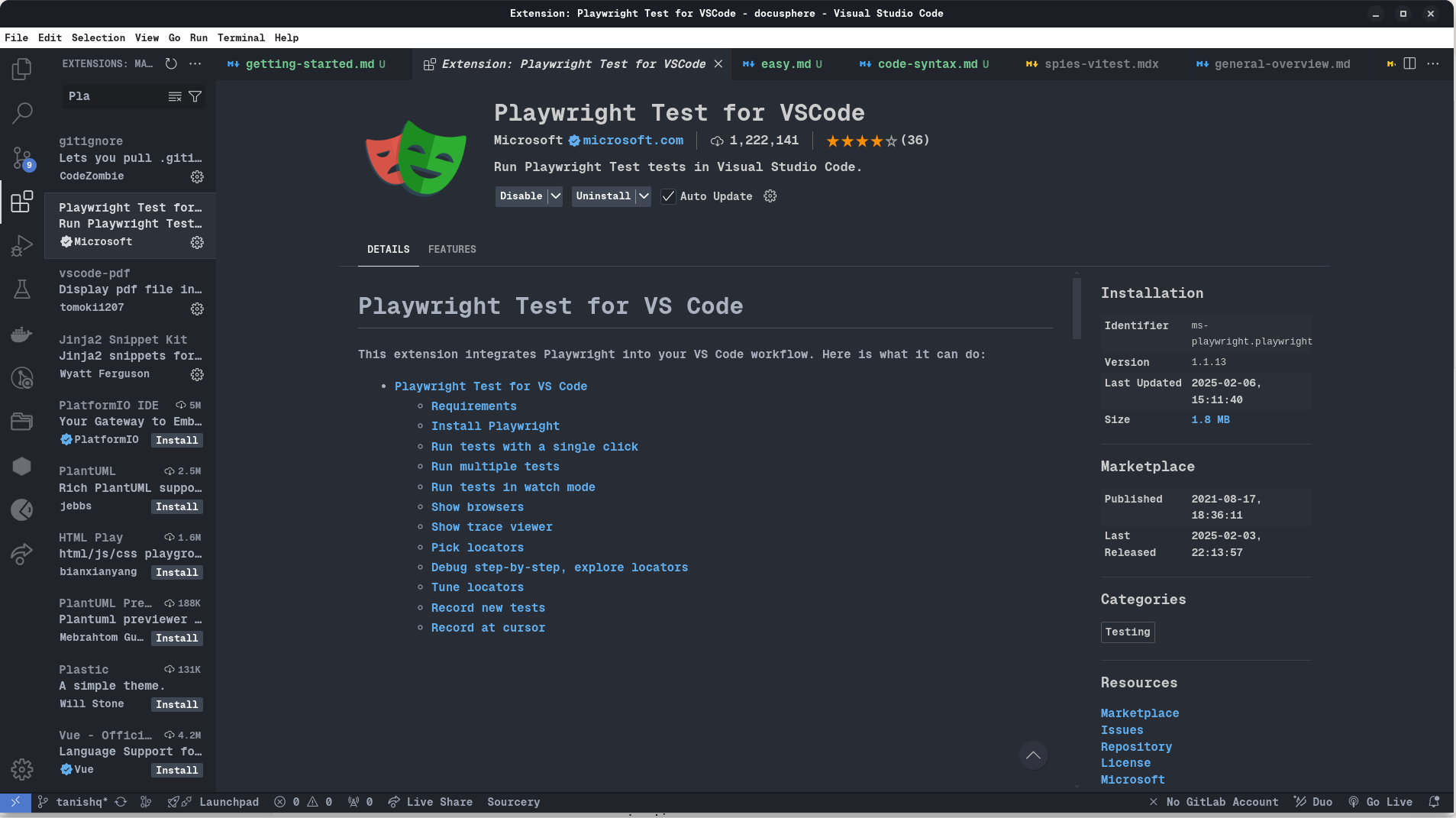
- Navigate to the Command Palette (
Ctrl + Shift + Pon Windows/Linux,Cmd + Shift + Xon macOS) - Search for Test: Install Playwright.
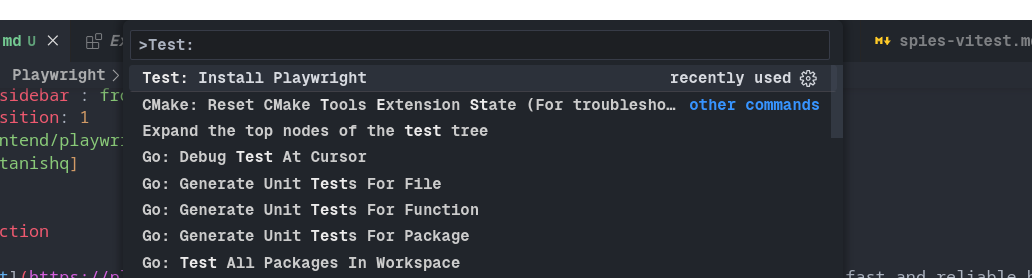
- Select all the browers or any of your choice. Click Ok
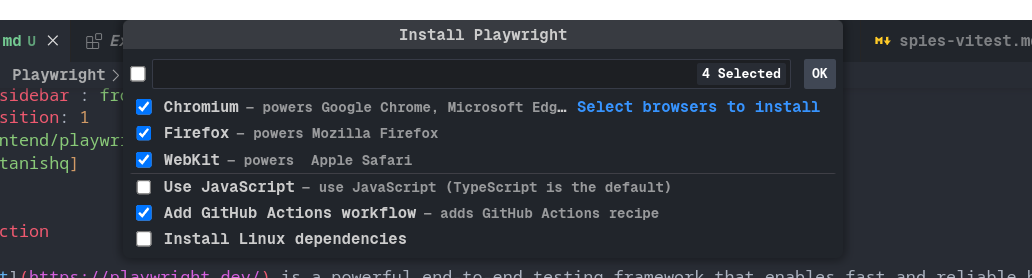
- Playwright is successfully installed!.
Usage
Navigate to Testing panel. Playwright will be ready for writing test cases. The feature of playwright makes writing test case fast.
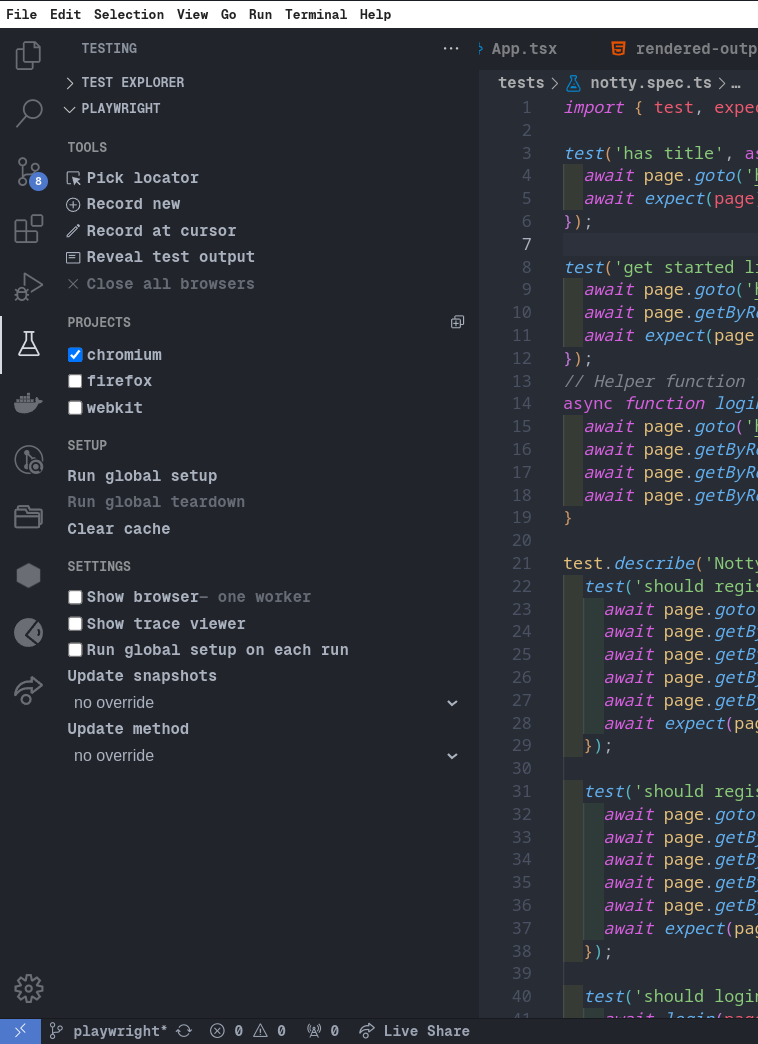
Key Features
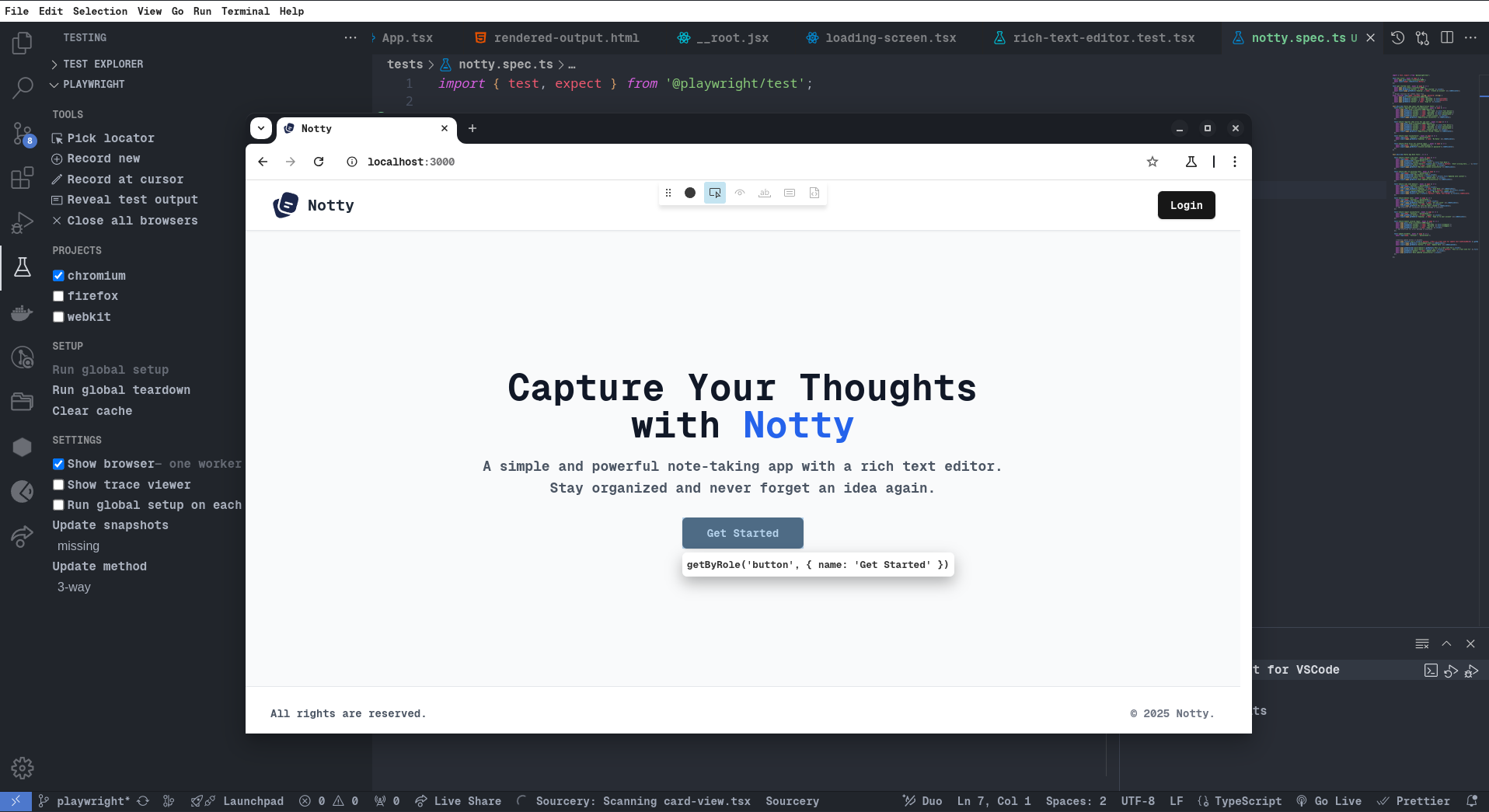
Pick Locator
The Pick Locator tool helps you quickly find and generate locators for elements on the page.
- Click on the Pick Locator button in the Playwright extension sidebar.
- Hover over elements in the browser preview.
- Click an element to generate a locator query, which you can use in your test.
- The locator appears in the VS Code terminal/output panel, ready for copying and also available in the open brower.
Record New
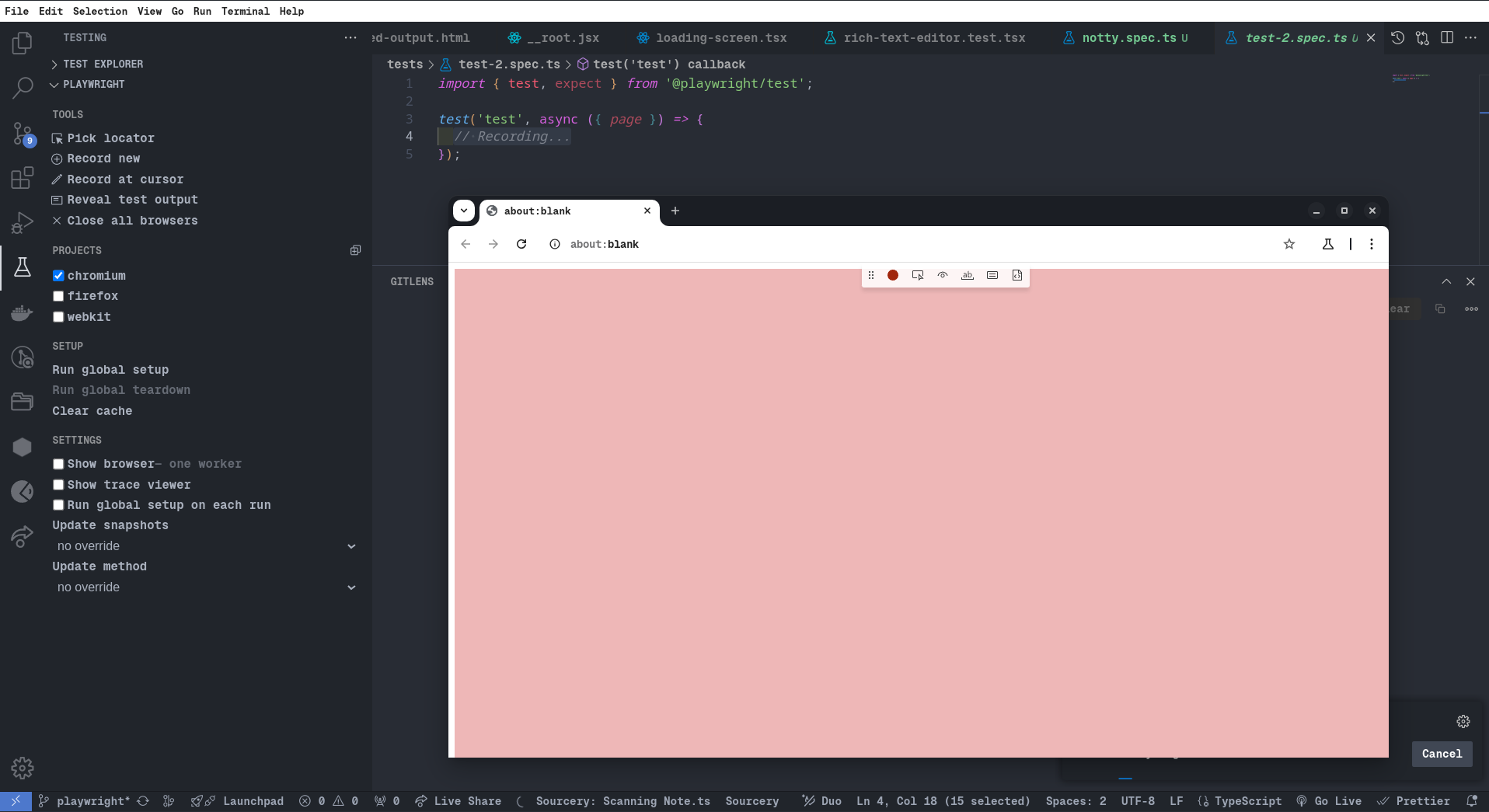
The Record New feature allows you to generate test scripts interactively.
- Click Record New in the Playwright extension.
- A browser window opens (also a new test file is generated) where you can interact with your application.
- Every action (click, input, navigation) is recorded and converted into a Playwright script.
- Once finished, the script appears in VS Code, ready for execution and refinement.
Record at Cursor
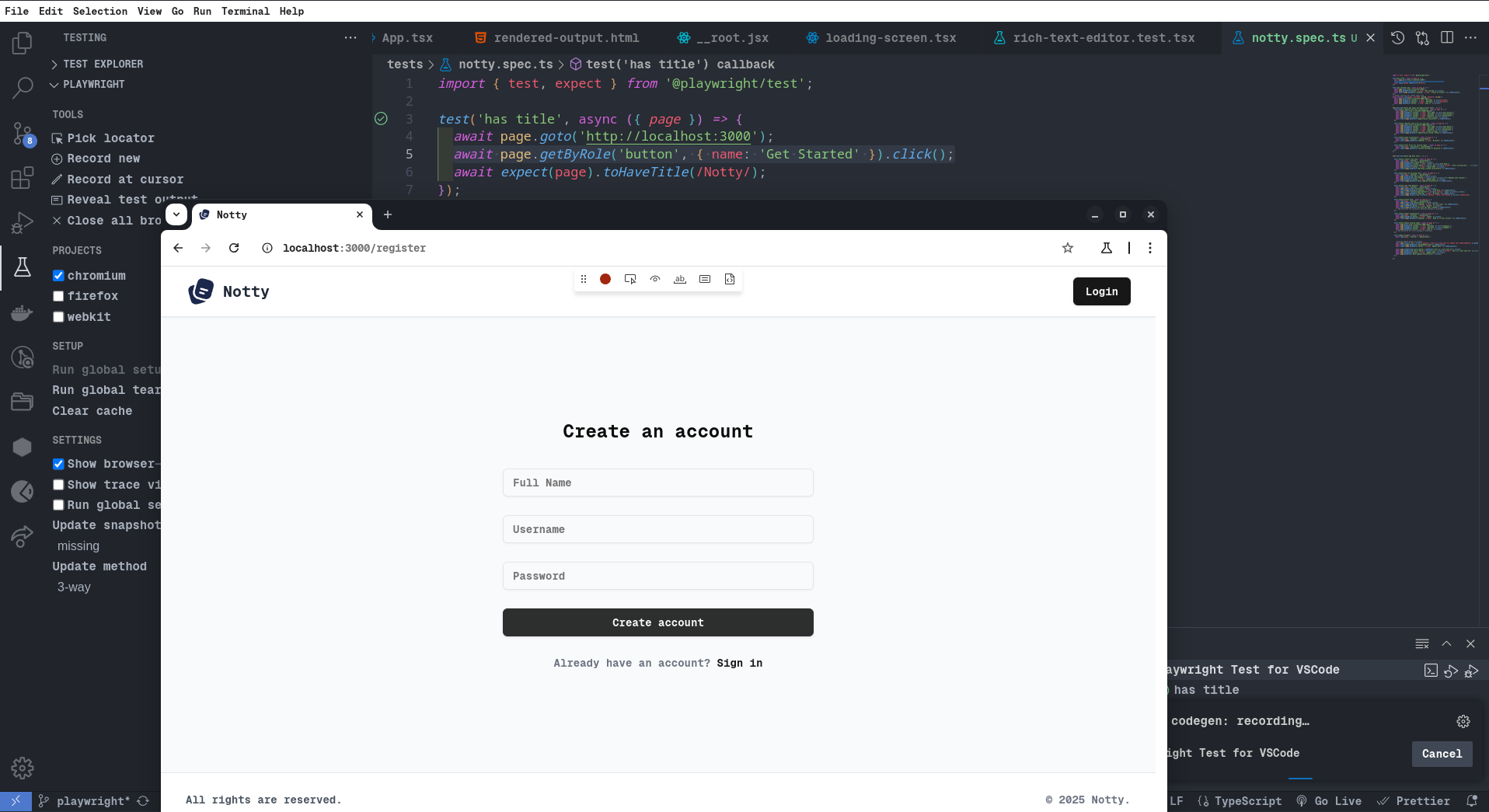
The Record at Cursor feature lets you insert recorded interactions into an existing Playwright test.
- Place your cursor in an existing test script where you want to insert new interactions.
- Click Record at Cursor in the Playwright extension.
- Perform interactions in the browser.
- The recorded steps are inserted directly at the cursor position in your test script.
Running Tests
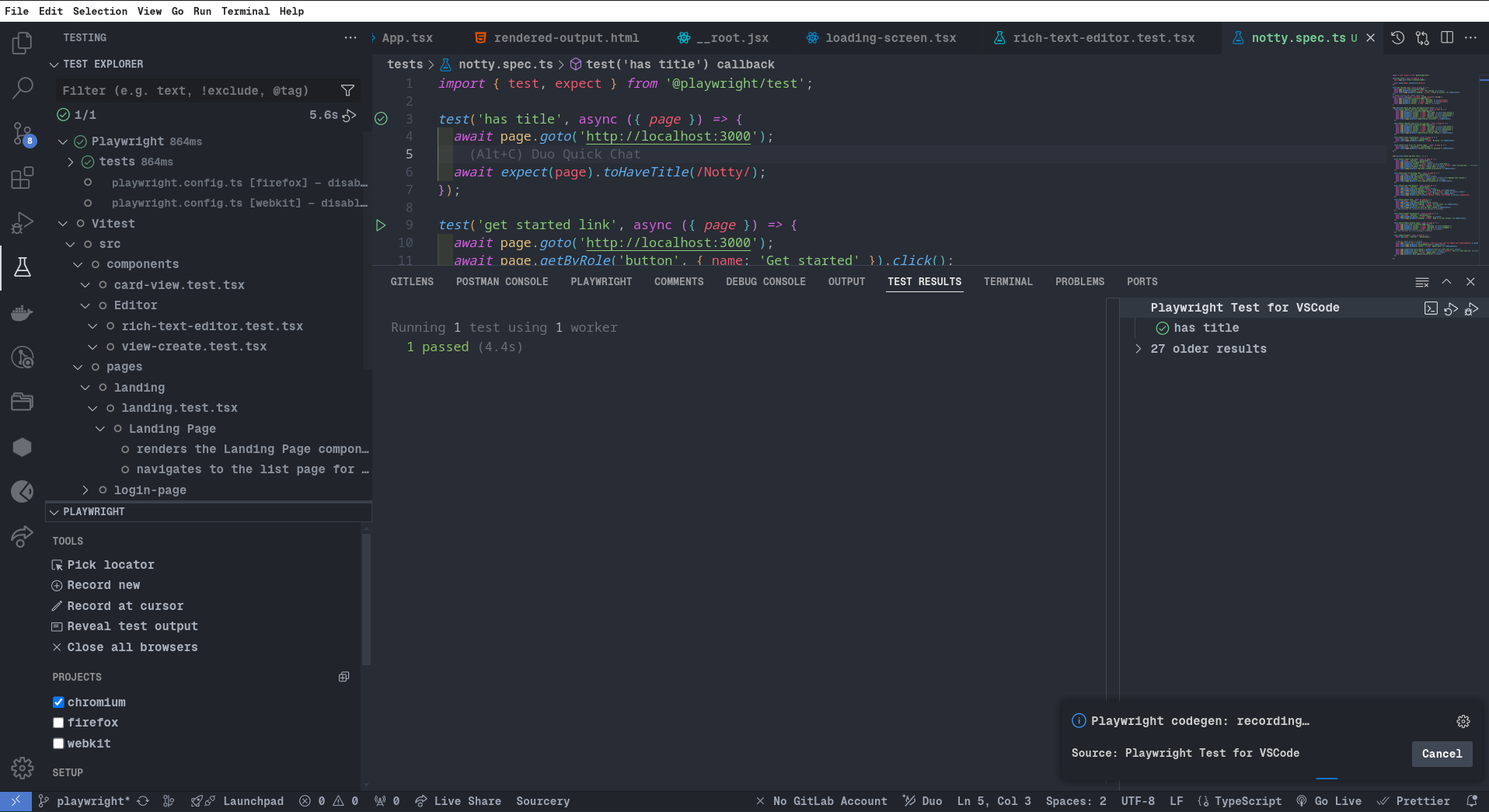
After creating a test, you can run it directly from VS Code:
- Click the Run button above the test function.
- Use the Playwright Test explorer in the VS Code sidebar.
For further details, visit the official Playwright documentation.